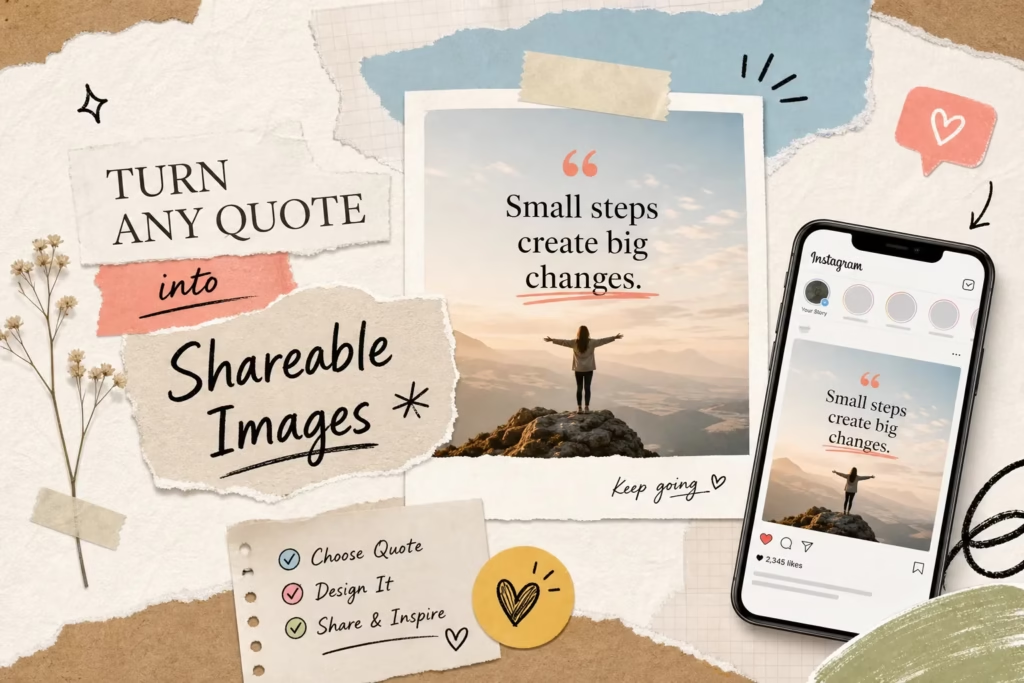
How do I share a quote as an image on Instagram? It’s a question more people ask than you’d expect, and the answer is rarely as simple as it should be. You find a quote that stops you mid-scroll, it says exactly what you’ve been feeling but couldn’t articulate. Your first instinct is to share it on Instagram, but then comes the pause: do you screenshot it? Open a design app? Search for a template? That gap between finding the right words and posting them as a clean, well-designed image trips up more people than it should. The process doesn’t have to be complicated.
This guide covers every method available, from the fastest one-tap solution to full custom design workflows for when you want complete creative control. Whether you’re in bed on your phone or sitting at your desktop with time to spare, there’s a workflow here that fits your situation. By the end, you’ll know exactly how to turn any quote into a properly sized, attribution-ready image that earns real engagement on Instagram.
Get the Dimensions Right Before You Design Anything
One common mistake with Instagram quote images is using the wrong size. A blurry, cropped, or oddly proportioned post signals low effort regardless of how powerful the quote is. Before you touch any design tool, lock in the correct specs so your work isn’t wasted.
For feed posts, you have two practical options. A 1080 × 1080 px square (1:1) is the classic choice, balanced and universally safe for any quote length. The 1080 × 1350 px portrait format (4:5) is Instagram’s recommended size for feed posts because it takes up more vertical real estate as users scroll, which increases the chance your post gets seen, for a quick reference on the exact sizes and ratios, consult an up-to-date Instagram image size guide. Both formats work best exported as JPEG at maximum quality. Despite what many tutorials suggest, PNG files get heavily recompressed by Instagram’s system, so a properly prepared JPEG at the correct dimensions preserves more quality after upload; if you want the deeper dive on PNG vs JPEG for Instagram, this article explains the tradeoffs: is PNG or JPEG better for Instagram. That said, Canva itself recommends PNG exports for sharpness, if you go that route, resize and export as a high-quality JPEG (sRGB, 1080 px wide) before uploading to avoid Instagram’s PNG-to-JPEG conversion doing the work for you.
For Stories and reel covers, the full-screen format is 1080 × 1920 px (9:16). When designing for this size, keep your quote text within the center 1080 × 1610 px safe zone to avoid it being clipped by Instagram’s UI elements at the top and bottom of the screen. Matching your reel cover to this spec also keeps your profile grid looking intentional and consistent rather than randomly cropped.
How Do I Share a Quote as an Image on Instagram, The Fastest Path
Most people approach this with a multi-step process: find a quote on one site, copy it, open a design app, paste it in, format it, export it, transfer it to their phone, and finally post. That’s not a workflow, it’s a chore. A smarter starting point eliminates most of those steps before you even open a design tool.
This is exactly where RainbowQuotes changes the experience. It’s a curated platform with quotes organized by mood, topic, and author, and it includes a built-in save-as-image feature. When you find a quote that resonates, you tap one button and receive a shareable image that’s already correctly formatted and ready to post directly to Instagram. The workflow shrinks to two steps: find the quote, save the image. The mood-based browsing feature, which lets you filter by feelings like hopeful, healing, focused, or motivated, is what makes finding the right quote fast rather than just saving it. You’re not hunting through a generic database; you’re matching a quote to exactly how you feel right now.
When evaluating any quote source for this purpose, look for a few essential features. Author attribution should be built into the image so you’re never guessing who said what when you post. Image quality should meet Instagram’s minimum 1080 px width requirement. Direct social sharing options that skip the camera roll entirely are a useful bonus. Many generic quote websites lack built-in high-resolution image exports or embedded attribution, which is why a platform purpose-built for sharing makes such a noticeable difference, learn more about using shareable quote images to grow on social media quickly.
Design Apps: How to Share a Quote as an Image on Instagram with Full Creative Control
When you want a custom look, a specific color palette, or your own brand aesthetic in the image, a design app is the right tool. You don’t need advanced design skills to produce a professional-looking quote graphic for Instagram.
Using Canva for Quote Graphics
Canva is the most accessible option for both beginners and experienced creators. Start with an Instagram Post template sized at 1080 × 1350 px rather than a blank canvas, since the template proportions are already correct. Add your quote text and use a clean, readable font like Montserrat or Lato, setting your letter spacing to 1.2, 1.5 for a polished look. If your background image is busy, add a semi-transparent rectangle behind the text and dial its opacity down to 30, 50% so the words stay legible. Export as a high-quality JPEG (sRGB, 1080 px wide) for best results after Instagram’s compression, then transfer to your phone via AirDrop or the Canva mobile app, which syncs your designs automatically when you’re logged into the same account. Canva’s free tier handles all of this without requiring a paid plan.
Mobile Apps for Faster Quote Image Creation
For faster work on mobile, three apps are built specifically for creating quote graphics. Word Swag uses an auto-layout engine designed for text-on-image posts, so you don’t spend time manually positioning fonts. Quotes Maker with Image combines a quote generator with thousands of templates and high-resolution export, available free with an optional $2.99 monthly subscription for premium features. Text2Pic offers direct Instagram connectivity and stylish text effects, also free with optional upgrades. All three are designed for rapid creation and can get you from idea to finished image in just a few minutes on simple templates.
Quick Mobile Shortcuts When You Don’t Want to Open a Design App
Sometimes you just need to get the quote posted without opening any additional app at all. These shortcuts work surprisingly well for a clean, shareable result when speed is the priority.
The screenshot and crop method is the simplest. Open your quote in a clean, minimal environment like the Notes app or a distraction-free browser view, then adjust the font size and background color to your preference before screenshotting. Your phone’s native photo editor handles the crop. This works best for short quotes with high-contrast text, though the tradeoff is lower resolution, screenshots capture device pixel density along with UI chrome, which can reduce usable resolution compared to a purpose-built 1080 px export. It’s not ideal for a polished feed aesthetic, but it’s genuinely fast.
For iOS users who post quotes regularly, the Shortcuts app enables a more automated approach. Build a shortcut that uses the Ask for Input action to collect your quote text, then passes it to an AI image tool like Nano Banana to generate a formatted background with your text overlaid, and saves the result to your camera roll as a JPEG. Once built, you can trigger this workflow with a Back Tap gesture or a home screen widget, making the process nearly instant. Android users can replicate similar automation with Tasker or Google Shortcuts, though the initial setup requires a bit more manual configuration.
Caption Rules, Attribution, and One Posting Habit That Improves Reach
A great image earns the scroll-stop, but your caption and attribution determine whether the post earns saves, shares, and new followers. These details also keep you on the right side of copyright law, which is worth understanding before you build a habit around posting quotes.
Copyright is the part most people skip, and it matters. If an author died within the last 70 years, their quotes are still under copyright protection under U.S. copyright law, and crediting them in your caption does not make sharing legal. The clearest safe zone is the public domain: quotes from figures like Confucius, Aristotle, or Marcus Aurelius are free to use without restriction. For modern or living authors, platforms like RainbowQuotes source and display quotes with proper author attribution already included in the image, which signals good-faith sourcing. For U.S. users relying on a fair use argument, keep usage brief and non-commercial and never present someone else’s words as your own. When in doubt, read more about copyright on Instagram and consider sticking to public domain sources when possible.
When it comes to writing the caption itself, Instagram creators and most platform-focused studies consistently find that captions starting with a strong hook within the first 125 characters outperform those that bury the point. Put your most compelling line first, before Instagram’s “more” truncation cuts it off. Aim for 138, 150 characters as a baseline, but extend to 300 characters if you have genuine context to add, longer captions that provide real insight tend to earn more saves, see recommendations on ideal social media post length for platform-specific guidance.
Always name the author directly in the caption or visibly in the image itself, not just in a hashtag. If the author has an Instagram account, tag them: it adds credibility and occasionally earns a reshare from their account. Close with a question that invites a real response. Posts that generate comments signal strong engagement to the algorithm, and a simple “Which line from this hits closest to home?” is enough to start that conversation. If you’re trying to tune which lines or styles drive the most interaction, see our guide on which motivational quotes work best for Instagram engagement.
For hashtags, a mix of broad tags like #quotes and #motivation alongside niche-specific tags like #quotestoliveby and #quoteoftheday gives you both reach and targeted discoverability. Aim for 5, 10 hashtags, mixing broad and niche tags, placed either in the caption or the first comment, and match them to the quote’s theme rather than using the same set on every post, for targeted hashtag ideas try this resource on hashtags for quotes.
Choosing the Workflow That Actually Sticks
Every method covered here gets you to a properly sized, attribution-ready Instagram quote image, a create quote post on Instagram workflow that you can repeat consistently. The one you’ll actually use is the one that fits how you work. If speed is the priority and your focus is finding the right quote for the moment, starting at RainbowQuotes and using the built-in save-as-image feature removes every friction point between discovery and posting. There’s no design step, no font decision, no file transfer, and the author is already credited in the image, explore how shareable quote images can accelerate your growth.
If creative control matters more, Canva at 1080 × 1350 px with a clean font and a JPEG export gives you a professional result every time. The mobile apps fill the space in between: faster than Canva, more polished than a screenshot. Pick one workflow, use it for a week, and then refine it. Consistency in how you post is what builds an audience, and consistency only happens when the process doesn’t feel like work. For help tightening your caption tone and structure, our post on Instagram quote captions offers mood-matched examples you can adapt.
Every quote you love deserves to be shared well. Now you know how to share a quote as an image on Instagram, pick the workflow that suits your situation and start with the very next quote you find.